Notifications & Alerts Page
Learn how to set up price alerts for your favorite cryptocurrencies.
Notifications & Alerts
Never miss a trading opportunity by setting up custom price alerts. The Notifications page allows you to track specific coins and receive alerts when they hit your target prices.
Creating a Notification
Follow these steps to create a new price alert:
- Navigate to the Notifications page.
- Click the Add Notification button.
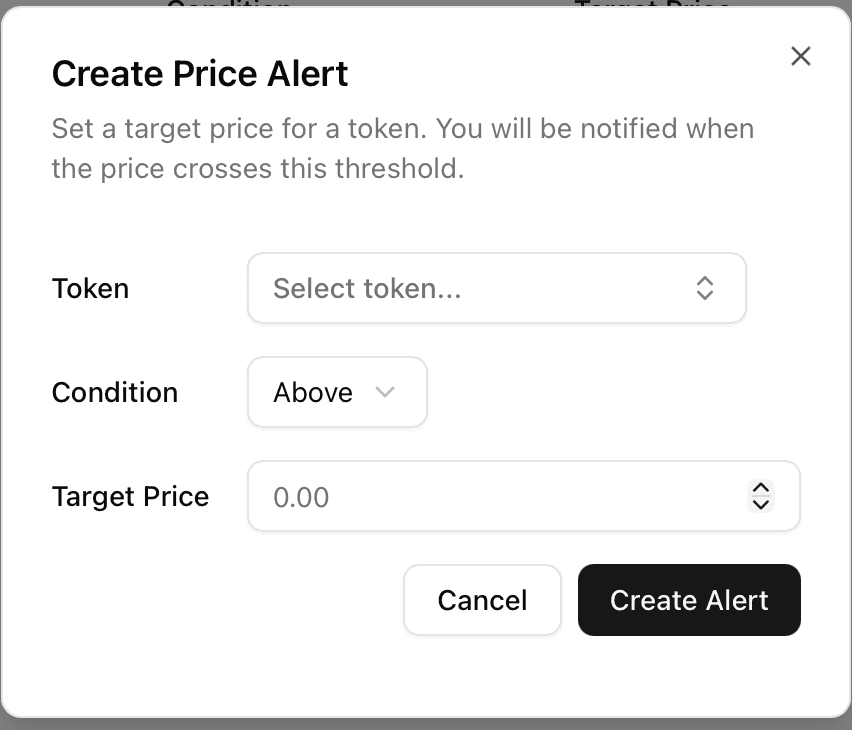
- Fill in the notification details:
- Coin Name: Select the cryptocurrency you want to track from the list.
- Alert Price: Enter the specific price value for the alert.
- Condition: Select the condition for the alert trigger:
>=(Price is greater than or equal to target)<=(Price is less than or equal to target)
- Click Save to activate the notification.
Understanding Status and Alerts
Your notification list displays the current status of each alert:

- Coin Name: The cryptocurrency being tracked.
- Alert Price: The target price you set.
- Condition: The rule (
>=or<=) being applied. - Status: Indicates if the alert is running.
Note: When a notification condition is met and the user receives the alert, the notification status will automatically change to Inactive. To track the price again, you must create a new notification.
Managing Notifications
Deleting a Notification
You can remove notifications that are no longer needed:
- Locate the notification in your list.
- Click the Delete button associated with that notification.
Editing Policy
Notifications cannot be edited after they are created. To change an alert (e.g., update the price or condition):
- Delete the existing notification.
- Create a new notification with the correct settings.